Showing posts with label Information. Show all posts

Wednesday, 28 September 2016

Facebook told to stop collecting German WhatsApp data


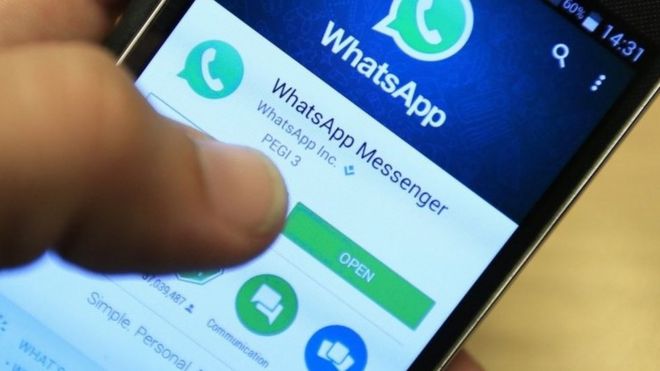
WhatsApp on smartphoneImage copyrightPA

Facebook has been ordered by a German privacy regulator to stop collecting and storing the data of German users of its messaging app WhatsApp.
The Hamburg Commissioner for Data Protection and Freedom of Information said that the social network had not obtained effective approval from WhatsApp's 35 million German users.
Facebook bought WhatsApp for $19bn (£14.6bn) in 2014 as a way to reach out to a younger audience.
It is to appeal against the order.
"We will work with the Hamburg DPA in an effort to address their questions and resolve any concerns," it said in a statement.
The data watchdog said that Facebook and WhatsApp were independent companies and should process their users' data as such.
"After the acquisition of WhatsApp by Facebook two years ago, both parties have publicly assured [users] that data will not be shared between them," said commissioner Johannes Caspar in a statement.
WhatsApp caused controversy in August when it announced that it was changing its privacy policy to allow its data to be shared with its parent company.
It said that better co-ordination with Facebook would help it to fight spam as well as allowing Facebook to offer "better friends suggestions and show you more relevant ads if you have an account with them".
It will share phone numbers and the details of the last time that users signed on to WhatsApp.
EU and US regulators reacted with caution, saying that the update needed to be investigated. The UK's Information Commissioner is also looking into the changes.
source : BBC

How to remotely shutdown another Windows computer


Microsoft Windows 2000, XP (XP home users read section below) and later users can remotely shutdown another computer in their network by utilizing the shutdown command.
To start the GUI version of this command, follow these steps:
Windows 8 and 10 users
  1. Press the Windows key + X on the keyboard to open the Power User menu.
  2. Select the Search option in the menu.
  3. In the Search text box, type shutdown -i and press Enter.
Windows Vista and 7 users
  1. Click the Start button.
  2. In the Search text box at the bottom of the Start menu, type shutdown -i and press Enter.
Windows 2000 and XP users
  1. Click the Start button, then select the Run option.
  2. In the Run window, type shutdown -i and press Enter.
After running this command you should see a dialog window shown in the example below.

As you can see in the example above, you'll have different options to choose from in the Remote Shutdown Dialog.
Tip: You need administrative privileges to access and shut down the computer remotely to complete the steps below.
  1. Specify the name or IP address of the computer you want to shutdown by clicking the Add button.
  2. Select Shutdown from the list of values under "What do you want these computers to do".
  3. Keep the Warn users of the action option checked if you want to warn the user of the shutdown before it occurs.
  4. In the "Shutdown Event Tracker" section, choose the option in the list of values that you want the Event Log to show when the computer shuts down and enter a comment.
  5. Click OK to initiate the shutdown of the remote computer.

For Windows Home edition computers

If the remote computer you're attempting to shutdown is running a Home edition of Microsoft Windows, you need to enable guest remote shutdown privileges before the above steps will work. To do this, follow the steps below.
  1. Download and install the Windows Resource Kit on the computer you are wanting to remotely shutdown.
  2. Once downloaded and installed, copy the NtRights.exe file from the "Program Files\Windows Resource Kits\Tools" directory into the "Windows\System32" directory.
  3. After the file has been copied, open a command prompt window by clicking Start, Run, and typing cmd and pressing Enter. At the prompt, type the below commands exactly as you see them here (unless your Windows directory is in a different path).

    cd\windows\system32
    NtRights –u Guest +r SeRemoteShutdownPrivilege
    NtRights –u Guest +r SeShutdownPrivilege
  4. If successful after typing each of the above NtRights commands, you should get a success message. Once this has been completed, exit the command prompt window and restart your computer.
Once the above steps have been completed, you should be able to remotely shutdown that computer from another Windows computer.

Unable to get remote shutdown to work

Inoperable remote shutdown could be caused by any of following reasons.
  • The domain administrator has group policies in place to prevent remote shutdown.
  • Remote administration or the $ADMIN share is disabled.
  • You're logged into an account that does not have administrative privileges.

Alternative solutions

If you're still unable to remotely shutdown a computer or are using an earlier version of Windows, there are dozens of software utilities that can be used. Our alternative recommended solutions are PowerOff and PsShutdown.exe, which is part of the freePsTools suite.
source: http://www.computerhope.com/

Tuesday, 27 September 2016

Top 10 keyboard shortcuts everyone should know


Using keyboard shortcuts can greatly increase your productivity, reduce repetitive strain, and help keep you focused. For example, to copy text, you can highlight text and press the Ctrl + C shortcut. The shortcut is faster than moving your hands from the keyboard, highlighting with the mouse, choosing copy from the file menu, and then returning to the keyboard.
Below are the top 10 keyboard shortcuts we recommend everyone memorize and use.

Ctrl + C or Ctrl + Insert and Ctrl + X

Both Ctrl + C and Ctrl + Insert will copy the highlighted text or selected item. If you want to cut instead of copy press Ctrl + X.
Apple computer users can substitute the Ctrl key for the command (cmd) key on their computers. For example, pressing Cmd + C copies the highlighted text.

Ctrl + V or Shift + Insert

Both the Ctrl + V and Shift + Insert will paste the text or object that's in the clipboard.
For Apple computer users use Cmd + V.
Practice
Use the above text input fields to highlight the "Cut or copy this text" text and press either Ctrl + C to copy or Ctrl + X to Cut the text. Once Cut Move to the next field and press Ctrl + V or Shift + Insert to paste the text.

Ctrl + Z and Ctrl + Y

Pressing Ctrl + Z will Undo any change. For example, if you cut text, pressing this will undo it. These shortcuts can also be pressed multiple times to undo or redo multiple changes. Pressing Ctrl + Y would redo the undo.
For Apple computers use Cmd + Z and Cmd + Y to undo and redo.
Use the above text input field to highlight some or all of the text and then press Ctrl + X to cut the text. Once the text has disappeared press the Ctrl + Z to undo the cut.
Tip: If you did the first example as well (cut and paste text) if you continue to press Ctrl + Z it is also going to undo that change.

Ctrl + F

Pressing Ctrl + F opens the Find in any program. Ctrl + F includes your Internet browserto find text on the current page. Press Ctrl + F now to open the Find in your browser and search for "shortcut" to find each time shortcut is mentioned on this page.
For Apple computer use Cmd + F to find.

Alt + Tab or Ctrl + Tab

Pressing Alt + Tab switches between open programs moving forward. For example, if you have your browser window open and other programs running in the background press and hold Alt and then press tab to cycle through each open program.
On Apple computers instead of using the Alt key use the Command (Cmd) key. For Example, Cmd + Tab to switch between open programs.
Bonus Tip: Press Ctrl + Tab to switch between tabs in a program. For example, if you have multiple tabs open in your browser now press Ctrl + Tab to switch between open tabs.
Bonus Tip: Adding the Shift key to Alt + Tab or Ctrl + Tab moves backward. For example, if you are pressing Alt + Tab and pass the program you want to use, pressAlt + Shift + Tab to move back to that program.
Bonus Tip: Windows Vista, 7, 8, and 10 users can also press the Windows Key + Tab to switch through open programs in a full screenshot of the window.

Ctrl + Back space and Ctrl + Left or Right arrow

Note: This is for PC computer users only and does not work on Apple computers
Pressing Ctrl + Backspace will delete a full word at a time instead of a single character.
Holding down the Ctrl key while pressing the left or right arrow will move the cursor one word at a time instead of one character at a time. If you want to highlight one word at a time, hold down Ctrl + Shift and then press the left or right arrow key to move one word at a time in that direction while highlighting each word.

Ctrl + S

While working on a document or other file in almost every program, pressing Ctrl + Ssaves that file. Use this shortcut key frequently if you're working on anything important in case an error happens, you lose power, or other problem that causes you to lose any work since the last save.
On Apple computers use Cmd + S to save a file.

Ctrl + Home or Ctrl + End

Ctrl + Home will move the cursor to the beginning of the document, and Ctrl + End will move the cursor to the end of a document. These shortcuts work with most documents, as well as web pages.
On Apple computers use Command and the Cmd and the up arrow to get to the beginning of a document or text or Cmd and the down arrow to get to the end of a document or text.

Ctrl + P

Open a print preview of the current page or document being viewed. For example, pressCtrl + P now to view a print preview of this page.
On Apple computers use Cmd + P to open the print preview.

Page Up, Spacebar, and Page Down

Pressing either the page up or page down key will move that page one page at a time in that direction. When browsing the Internet, pressing the spacebar also moves the page down one page at a time.
Tip: If you are using the spacebar to go down one page at a time, press the Shift key and spacebar to go up one page at a time.
source : Computerhope

Windows 7 bootable USB


From time to time it may be necessary to reinstall the operating system of the computer. In addition, a new installation and when upgrading to a newer operating system such as Windows 7, is necessary.
  • Read also windows 7 tuning tips
Especially with netbooks, there are problems here quickly if no CD or DVD driveis installed and also an external drive is still available. For this reason, the installation of Windows 7 with Windows 7 bootable USB is recommended in such situations.

Windows 7 bootable USB

In order to install windows 7 from Windows 7 bootable USB on a computer ornetbook, you need a USB stick that has sufficient space available. With Windows 7 Professional about 3 gigabytes are required.
Also there are no other important files on the USB stick should be located, as these would be deleted in the preparation of the USB stick.
Furthermore, you need a computer via the USB stick can be configured. In addition, should the BIOS of the computer on which you want to install windows from Windows 7 bootable USB, you have to allow booting from USB, which is likely to be the case with almost all modern computers.

Configure USB for installation

If you have purchased Windows 7 DVD version, an image of the DVD must first be created. For this purpose, a special program is needed. The required ISO image, for example, using the free tools ImgBurn are generated and stored on the hard drive.
  • If you have Windows 7 available for purchase as a download from theMicrosoft Store, then choose the image thus obtained can be used directly.
Once the ISO image of your Windows 7 version is available on the hard disk is available, the Windows 7 USB / DVD comes Download Tool from Microsoft is used, which was developed especially for the transmission of a Windows 7 image on a USB flash drive or a DVD.
  • The program can be downloaded free from the Internet and must be installed on the computer, which you use to configure the USB sticks.
After installation, you must restart the tool. First, select the saved image on the hard drive out. Then there is the choice between USB flash drive and DVD.
  • Read also windows 7 ftp
For the installation of Windows 7 on a USB stick, select the USB option and search for the desired USB flash drive in the next step. Then the copy process can be started.

Windows 7 installation

After copying is complete, the Windows 7 USB / DVD Download Tool, a bootable USB flash drive is available with the installation files for Windows 7.
This now needs to before starting the computer on which the operating system to be installed, be plugged into this. If the computer is not the same boots fromUSB, you need to change when you start into the BIOS menu.
  • Read also speed up windows 7 
  • This can be called with F12 on many computers. However, this shortcut key can vary and will be displayed at startup. In the BIOS can now be selected, it will boot from whatever media. In this way, the USB stick can select either directly or put in the priority list before the hard drive.
The necessary BIOS settings were taken or the computer has booted from USB, Windows 7 starts the installation. Then the necessary settings for the operating system configuration can be taken and Windows 7 is installed and configured on the computer.

source : Tazablog

Friday, 23 September 2016

Logitech Harmony Home Control


Do yourself a favor and throw your basic $4 universal remote in the garbage can — that’s not a man-approved remote control, sorry. And, let’s face it, you lose it all too often anyway. One cool gadget you need in your life is a Logitech Harmony Home Control, a universal smart remote and base that allows you to use your smartphone as a remote as well. The device not only works with the majority of your entertainment devices, but also your home automation devices like Philips Hue or Nest Learning Thermostat (so you can lower the lights or change the temperature without even leaving your seat). The Logitech Harmony Home control works with over 270,000 devices, including TVs, satellite and cable boxes, blu-ray players, Apple TV, Roku, Sonos, Xbox, Philips Hue and more. So if you want to control the world around you without having to get up, pick up the Logitech Harmony Home Control — you’ll feel like a wizard!
Price: $149.99
Source: Heavy Gadgets

Thursday, 22 September 2016

Do you cover your webcam? Privacy is important


Privacy is important. If your webcam gets hijacked, hackers can record you with your notice. It’s good to cover your webcam with small sticker on it to stop the CIA reading your brainwaves.


Hackers are really interested in spying upon others and steal information. They like to record a video footage about you from your computer without your permission and blackmail you for money or something else.

Make sure you run up-to data anti-virus software that help’s you to detect any malware in your computer.


If you are looking for some good webcam covers then check out this link from amazon.com.

Sunday, 17 July 2016

Nokia P1 Android smartphone: All That’s Known About the Nokia’s Secret Upcoming Phone

Nokia's Secret P1 Android Smartphone In Making, Leaks Confirm

Nokia P1 Android smartphone, will it be tough like Nokia 3310?

The yesteryear's smartphone king, Nokia was in News recently for its upcoming Android smartphone, Nokia P1.  We all know Nokia for its tough and rugged mobiles like 3310 and Express Music and judging by the interest shown in Nokia P1, people are awaiting the Finnish smartphone maker’s Android foray eagerly.
Once, the largest mobile phone seller by a distance, Nokia fell to the wayside after the emergence of Android smartphones and iPhone. Nokia’s inability to  adapt to Android and the lack of success for its S60 operating system meant that it was a ripe takeover candidate. And that it what happened in 2014 when Microsoft bought Nokia’s mobile business for a whopping $7.6 billion.
What happened after that is a true sob story. Like a true corporate raider, Microsoft stripped Nokia smartphones of its iconic label and renamed them Lumia smartphones. It further stripped Nokia’s patents and used them for its own gains. When nothing was left to salvage, Microsoft took a $7.6 billion writedown on its balance sheets last year and forgot about Nokia.
But apparently, those who remember Nokia’s tough and rugged smartphones and the erstwhile Nokia fanboys club did not. As soon as the Nokia P1 press renders hit the News, there was a dizzy search for images and news about Nokia’s upcoming Android smartphone. Our readers also joined the fray and shot in hundreds of emails to us asking details about Nokia P1. Here is our attempt to tell you all that we know about Nokia Android smartphone.

All about Nokia’s Android smartphone

Nokia is returning to smartphone production in collaboration with the Chinese smartphone manufacturer, Foxconn. The Nokia-Foxconn deal was announced in May 2016 through which Foxconn will manufactureNokia’s Android smartphones. Foxconn also purchased Sharp a few months ago, which may give an explanation as to why the image could be the same as the Sharp Aquos 1. It looks  like Sharp Aquos P1 will be re-branded as the Nokia P1 for launch in Europe in October but there is no verifiable news about this.

Nokia P1 Specifications

Nokia P1 Android smartphone will have the same set of specs as Sharp Aquos 1. According to reports, Nokia P1 will have a 5.3-inch FHD resolution IGZO panel for display. It will be powered by the latest Snapdragon 820 processor running on 3GB RAM and will have 32GB of expandable storage. The Nokia’s first foray into Android smartphones will carry its signature big camera and feature a 22.6MP primary camera with an f/1.9 aperture. The whole setup will be powered by a solid  3,000mAh battery. Nokia P1 will have IP58 dust-proof body of water repellent and fast-charge support.
The Nokia P1 Android smartphone make a mouthwatering spec list for Android smartphone buyers. Given Nokia’s history we can expect a rugged and tough smartphone which can withstand the everyday fall, grime, dust and the coffee spills our current Android smartphones aren’t capable of enduring. The only smartphone that comes close to withstanding our day to day assault is the Moto X Android smartphone, but that smartphone hasn’s clicked the way it should have.
It is however requested to take the above news with a pinch of salt because this is not the first time when the Nokia Android smartphone has been leaked. Earlier, there was news of Nokia C1 coming in both variants Android and Windows which ultimately proved to be false. Even the ever reliable GSMArena brought out a specifications list for Nokia C1 only to disappoint. If you are planning to buy a new Android smartphone in the upcoming holiday season, it will do you a world of good to wait till Nokia P1 Android smartphone is launched. Be assured, once Nokia P1 comes to the market, it won’t disappoint you.

Source http://http://www.techworm.net/2016/07/nokia-p1-android-smartphone-known-nokia-secret-upcoming-phone.html

Saturday, 16 July 2016

Top 10 countries with the fastest internet


List of top 10 countries with the quickest internet

Electronic devices, multimedia and computers are things that we deal with every day and which have a huge influence on our daily life. Especially the Internet is becoming more and more important for nearly everybody, and is now our preferred medium of everyday communication. Internet is definitely one of the newest and most forward-looking media and the medium of the future.
However, to enjoy the uninterrupted services of the internet, you need to have good connectivity. There are two important metrics in bandwidth allocation (measured in Megabits per second or Mbps): download and upload speed, denoting the speed of inbound and outbound data respectively.
The average web page loads at 6.3 Mbps universally, a number that denotes how many million bits of data can be moved in a second.
While 6.3 mbps is quick enough to send an email or watch a Netflix show, it’s still very slow.
Akamai Technologies, a Massachusetts-based internet provider, did a study on how the internet speeds measure up in countries worldwide. The company releases a report every quarter that ranks countries as per their internet speed.
According to them, here are the top 10 countries, which are mentioned in descending order of net connectivity.
1. South Korea
According to the Akami report, people in South Korea enjoy the fastest internet in the world. The country’s average internet speed measures 29 Mbps, which is 4.6 times as quick as the global average.
To put things in viewpoint, the average HD film is about 5,000 mb. A computer could download that in a little over two and a half minutes at 29 Mbps speed.
In spite of more than 80% of South Korean households have access to some of the world’s fastest internet connections, they face usage limitations. Several internet users have to face strong internet censorship in South Korea, according to a 2015 report by the nonprofit Freedom House.
2. Norway.
Norway witnessed the biggest growth (68%) in internet speed at 21.3 Mbps since last year in comparison to any other country in the top 10. At this speed, a computer could upload or download about five high-quality photos per second.
3. Sweden.
Sweden’s internet offers an average of 20.6 Mbps, which means that many people hardly face any experience delays, even if they have multiple applications running that use a lot of bandwidth.
Since last year, the country has noticed a 32% increase in speed.
4. Hong Kong
Hong Kong was the first country in the world to hit 60 Mbps in 2013. Today, its residents enjoy an average internet speed of 19.9 Mbps.
5. Switzerland
The internet in Switzerland rises at an average 18.7 Mbps, a 25% increase from last year.
6. Latvia
Latvia’s average internet speed is 18.3 Mbps, which is nearly three times quicker than the global average.
7. Japan
Users in Japan experience an average internet speed of 18.2 Mbps, which is offered to them by high-speed fiber optics (cables that enable faster internet). This means that even if there are several people in a household who are using Netflix, or are playing video games, and browsing the web on different devices at the same time, they will not experience any slow-downs.
Japan is one of the many countries working on super-fast 100 Gbps (Gigabits per second) internet.
Meanwhile, the Japanese provider So-net offers 2 Gbps internet that is twice as fast as Google Fiber, making it the world’s fastest commercially available internet service.
8. The Netherlands
The Netherlands’ average internet speed is 17.9 Mbps. According to a 2014 report, the country also brags the highest percentage of households using the internet in the EU (European Union).
9. Czech Republic
Witnessing a 31% increase from last year, the internet in the Czech Republic loads 17.8 Mbps on average. This speed is somewhat above what most people in the U.S. would think as average that allows you to watch HD videos and surf the web without any kind of interruption.
10. Finland
People in Finland use the internet at 17.7 Mbps on an average, which is comparatively fast.
In 2010, the country’s Ministry of Transport and Communications provided every Finnish citizen at least a one Mbps internet connection. One Mbps will let you send emails at a snail’s pace, browse the web, and watch low-quality YouTube videos. It is an extremely slow speed for downloading or uploading huge files.
Friday, 15 July 2016

Why “C” is The Default Drive Of Your Computer Instead Of A or B?


Once upon a time it was hard to own a computer. Having a computer was such a luxury no one could easily afford. But, nowadays the number of computer owners are increased dramatically than it was guessed by the inventors. and why not ? it is the most important machine today. In the present situation of Tech world, there is no wonder if anyone says that computer is an essential part of a human.
Though you may be using the computer for many days, most probably there would be many things which were unknown to you. If you are using the computer for many days, then here is a question for you.

Have you ever wondered why the names of drives start from “C”?.

Where had the A and B drives gone?

Here is the answer to the question:


  • Hard disk drives became standard since 1980.
  • Before hard disk drives, Floppy disk drives were used as the storage devices.
  • Floppy disk drives were the initial storage devices.
  • They came to existence since 1960’s. Floppy disks came in two sizes 5 1/4 ” and 3 1/2″.
  • Those two floppy disk drives were labelled as Local Disk (A) and Local Disk (B).
  • After the invention of Hard disk, a floppy disk of size 8 inch came into existence.
  • Presently Floppy disk drives and Floppy disk drives replaced the floppy disks.
This is the reason behind the labelling of hard drives. As a result, drives other than default drive (C) labelled as D, E etc. DVD drive and USB drive are labelled as F, G and so on. Though “C” drive comes as the default, you can change it to A or B if you have the administrative rights.
Source address: http://www.damnnet.com/why-c-is-the-default-drive/