Showing posts with label Android. Show all posts

Tuesday, 27 September 2016

Apple Watch Design Guidelines.

 What You Should Have Known Already.


If you are one of the many individuals who believe that the Apple Watch was designed with the sole intent of making all other Apple products obsolete in nature, you may want to think again. The intent of the Apple Watch is to simply provide an alternative device in terms of weight and accessibility. This specific watch will definitely allow you to make the most of your time, especially with the state-of-the-art smart screen.
The screen of the Apple Watch is available in two different sizes: 38 millimeters and 42 millimeters. As expected, the screen is touch-sensitive, though actual gestures are not supported; however, the Apple Watch screen is able to differentiate between taps and holds thanks to the pressure-sensitive setting that the screen contains.
A digital crown on the watch’s side acts as a form of scrolling up and/or down in order to allow the user to not have to continuously touch the screen. The crown can also work for pressing buttons and zooming in and out of the screen.

Monday, 26 September 2016

HOW TO USE SIRI ON YOUR LAPTOP IN MACOS SIERRA.

APPLE PUT YOUR FAVORITE VOICE COMMAND ASSISTANT ON YOUR COMPUTER


Here's our guide on how to use Siri for the MacBook series in macOS Sierra version 10.12. For our complete guide to using macOS Sierra, head over here.

Siri got another upgrade

Apple's voice-activated virtual assistant Siri got a boost in iOS 10, but it doesn’t stop there. After updating your Mac to the latest version of the new operating system, macOS Sierra, Siri appears automatically on your home dock. You can remove it from the dock if you want, but Siri is fun to use and can actually help you out.
To get Siri to pop up, all you have to do is click the icon on the dock. Siri appears in the top right corner of your screen, asks her usual “What can I help you with?”, and waits for you to say something. If you don’t, Siri provides a list of sample questions that you can ask, as seen above.
Simply speak your request and Siri will tell you what it finds in a menu on the right-hand side of your screen. If you ask it about this publication, for example, it will provide you with this information:
If you ask Siri to play music, it’ll automatically play what you want, so long as it recognizes your speech correctly. I asked it to play “Frank Ocean’s Nikes,” which it picked up as “Frank Ocean’s 90’s” before quickly correcting to Nikes and playing the song for which I asked.
Siri can help you get directions, put dates into your calendar, send emails, search your files and more. Your old voice-recognition buddy moved in and can potentially be a super helpful tool on your laptop or desktop.

Source : Popsci

THE BIG UPDATE BRINGS MORE BRAINS AND COOL FUNCTIONS TO YOUR COMPUTER


If you’re a Mac user, it’s more than likely that you’ve hit “remind me later” a few times for the newest macOS software update. But Sierra, aka macOS Sierra Version 10.12, is available now on most modern MacBooks and iMacs and has some huge new features for your computer.

To get Sierra and try them out for yourself, visit this official Apple page and click the blue button marked "Upgrade Now." Or, on your computer, click on the Apple logo in the top left of your Mac's screen, select "System Preferences", find the "App Store" icon and click it, then click "Show Updates." macOS Sierra should be available as an option there.
You get an upgraded dock with the addition of Apple’s signature Siri, and you gain some other fun and useful features with your computer and compatible Apple devices. Here are our favorites, and how you can use them.

Source : Popsci

Kids toys are getting more creative with technology.


Sure, kids can pick up a tablet or smartphone, but the true innovative toys are those that combine high tech and simplicity. The Moff band collaboration with Pac-Man is a perfect example of this. Kids wear the Moff band and swing their arms to play Pac-Man through an app — making them physically active while using a smartphone or tablet.

Source : Popsugar

How to Unlock your Samsung Screen Lock with Dr.Fone: Android Screen Lock Removal


How to Unlock your Samsung Screen Lock with Dr.Fone – Android Lock Screen Removal

Screen locks have become a relatively important thing for most of the Android smartphones, as the screen lock not only provides privacy to customers but also prevent others from checking their private data on their device when they are not around. Screen locks prevent the smartphone from opening applications on its own or dialing itself to some random number because of the super sensitive touch screens we get on smartphones today. It also keeps the smartphone safe when it is between the sheets or in your pocket.
How to Unlock your Samsung Screen Lock with Dr.Fone - Android Lock Screen Removal
In spite of the above advantages, screen locks have their drawbacks too. The biggest disadvantage of putting a screen lock on your smartphone is to unlock it. Whether it is a pattern or a numeric code or anything else, being unable to memorize the combination can be real  bad because as long as the lock screen of the smartphone does not open, you will be unable to do anything with your precious device.
When such situation arises, the common method used to unlock Android smartphones would be root the device, which is also suggested by Android phone service providers.
Rooting the device might be the right and preferred method, as you could lose all the data on your smartphone, especially the one that you did not back up, as well as affect the guarantee or warranty of your smartphone. The best way is to take help from some reliable application that can effectively deal with the issue without damaging anything.
How to Unlock your Samsung Screen Lock with Dr.Fone - Android Lock Screen Removal

Dr.Fone by Wondershare

Wondershare Dr. Fone is a superb software application that will efficiently and effectively unlock samsung screen lock without compromising with the device and the information stored in it. Wondershare Dr.Fone works with all four kinds of screen locks, i.e. patterns, fingerprint, passcode and PIN. Whether you have forgotten your Android lock screen’s password or bought a second-hand Android device with an already locked screen, with Dr. Fone you can easily and quickly remove Android lock screen. It can remove all four kinds of screen lock, i.e. password, patterns, fingerprint, and PIN within few minutes.


Even though the Dr. Fone software is quite old and popular, the ‘Android Lock Screen Removal’ feature in it is a new one. It can be used on your Android device, Windows computer, and Mac computer (Coming Soon). It is so simple and easy to operate that no extra technological wisdom is required to handle it. It is completely secure and 100% effective.
Currently, it works for Samsung Galaxy S, Note, and Tab series. It is also fully compatible with Windows 10.

How to use Dr. Fone for Android software

The procedure to handle the software and retrieve back your device is pretty simple. The step by step guide below will help you to use Dr.Fone, so that you can successfully remove the Android lock screen within 5 minutes.

Step 1: Choose ‘Android Lock Screen Removal’

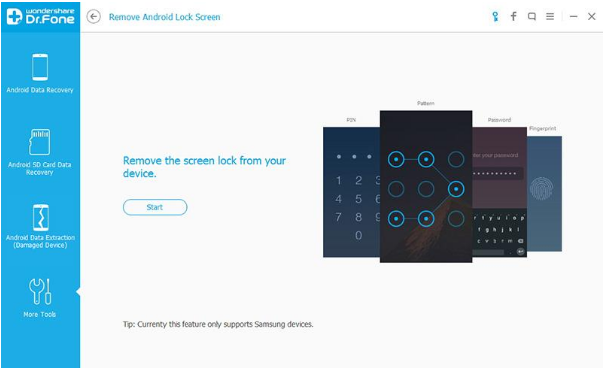
To get started with Dr. Fone, launch Wondershare’s Dr.Fone for Android software. Once done, go to the ‘More Tools’ section in the software. From here, choose the option of ‘Android Lock Screen Removal’ from the three options provided under ‘More Tools.’ This will allow you to remove passcode, PIN, fingerprint and pattern from your Samsung phone.
remove-android-lock-screen
As said above, Wondershare Dr.Fone can remove all types of Android smartphone screen locks, including password, PIN, pattern, and fingerprint. Then, connect the Android mobile device and click on the ‘Start’ button to begin.

Step 2: Enter the download mode on your Android device

In order to get to the download mode in your Android device, follow the instructions below, which are also provided in the program.
1. Turn off your Android smartphone.
2. Hold the power button, the home button, and the volume down button simultaneously.
3. Press the button of the “Volume Up.”

Step 3: Download the recovery package

After you have entered into the download mode on your Android device, your smartphone will start downloading the recovery package subsequently. Wait until the download completes.

Step 4: Remove Android lock screen without losing your data

Once the download is complete, the Android lock screen removal process will start. While the Dr. Fone software works, none of your data on your Android smartphone will be affected. After the whole process is over, you can access your Android mobile device without entering any passcode/pin/pattern and access all your smartphone data without any problem.

Congratulations, if you have followed these procedures, you have successfully unlocked your Samsung Galaxy Android smartphone effectively without having to go through any of the phone lock mechanisms. As you can see,  Wondershare Dr. Fone is an awesome piece of software which helps you get your Samsung smartphones up and running with passcodes/pin. s

Source: TechWorm

Sunday, 25 September 2016

10 best Android Apps which are not available on Google Play Store


10 best Android Apps which you should have on your smartphone but are not available on Google Play

As you may already know, there are more than a million Android apps on Google Play which cater to your different needs. But there are some great apps which you should have on your Android smartphone because they are not available on Google Play. The reasons for this are various, prominent among them is that most of them violate Google’s terms. If you are one of those who loves to experiment,  you can always grab APK files for these Apps and install them on your smartphone.
These apps are easy to install, so long as you know where to find them. Remember that in most cases you won’t be alerted when they are updated, so it’s a good idea to check back with the download location from time to time to ensure you’re always running the latest version. Also to install these APKs on your Android smartphone/tablet, be sure to enable Install from Unknown Sources from Settings.

#1 VideoMix

15 Amazing Android Apps You Wouldn’t Find on Google Play Store
This is the best App that will let you stream videos, TV shows and lots more for free of cost. Also, there will be no need to sign up or register in this App, just open the app search for your favorite movies and start streaming.

#2 Blackmart Alpha

15 Amazing Android Apps You Wouldn’t Find on Google Play Store
Blackmart Alpha is known as the most popular alternative to Google Play Store. Blackmart Alpha is well known its black market store which will offer you a host of cool apps for free of cost. Those Apps that are normally paid Apps on Google Play are available for free on Blackmart Alpha.

#3 Lucky Patcher [root]

15 Amazing Android Apps You Wouldn’t Find on Google Play Store
Lucky Patcher is an App that allows you to modify other Android apps in various ways. You’ll need a rooted device to harness all the features of Lucky Patcher. You can run several actions with this App such as removing license verification for premium apps, modifying APK files, and backing up/restoring apps. It’s better to make a full backup of your Apps and data before using this App as it can possibly lead to loss of data.
not-on-google-play-tubemate
TubeMate is a very popular YouTube downloader app which is obviously not allowed on the Play Store due to Google restrictions. It also supports downloading video from other websites such as Facebook, Vimeo, and DailyMotion among others. While the interface is a little clunky and riddled with ads, it works very well for what it’s worth and allows you to download videos in a variety of formats and resolutions.
You are advised to download the APK for Tubemate only for the above link, as there are a lot of fake, infected TubeMate APKs available online. Another alternative to TubeMate is Videoder which has an attractive interface but slower download speeds.
not-on-google-play-mixplorer
MiXPlorer is one of the best Android file managers out there with a very neat user interface and plenty of features that should appeal to both casual and power users alike. For one, it offers tab support and a dual panel mode on big screens which helps if you’re working with several folders at once. You can also access your cloud files with up to seventeen services to select from including all the popular ones such as Google Drive, Dropbox, MEGA, andOnedrive.
MiXPlorer also supports root access for advanced operations, advanced search functions, and a very customisable user interface. Overall, it’s a very well-rounded file manager you can get for free that doesn’t have ads.
not-on-google-play-F-droid
F-droid is the market for free and open-source Android software. Downloading the F-droid client makes it easy for you to search for and install open-source apps, and it also helps you keep track of updates on your device. It’s highly recommended for open-source enthusiasts.

#8 Amazon App Store

15 Amazing Android Apps You Wouldn’t Find on Google Play Store
The giant shopping network has their own App store where you can find a huge collection of free apps that you may not get in the Google Play store that is why it is also known as the best alternative to Google Play Store. You can also download Amazon Underground from Amazon App store. This app gives you all the usual shopping features along with access to the Amazon Appstore. More importantly, it includes Underground Apps, a selection of $20,000 worth of apps, games, and in-app purchases available for free.
not-on-google-play-popcorn-time
Popcorn Time allows you to watch movies and TV Shows on your Android device either by streaming or downloading to watch offline. There are literally thousands of high-quality movies here, and you can either search for specific titles or browse the available collections.
not-on-google-play-xposed-framework
Installing a custom ROM is one way to modify your Android device, but you don’t really need to do so if you just want to modify a few things here and there. The XPosed Framework allows you to modify your existing system without going through the hassle of installing a custom ROM. It is for root-level users only, and there is a wide range of mods and tweaks that can be applied to your device, but be careful. Do backup your data before using the Xposed Framework or its components.

Source: Techworm